SSD Usable Capacity in 2026: The Gigabytes You Pay For and Never See
Key takeaways
- SSD usable capacity is 6.87% below the label on every drive ever sold, at every capacity, for one reason: the box counts in 1,000,000,000-byte gigabytes and your operating system counts in 1,073,741,824-byte ones.
- A 2TB drive shows 1,863 GiB, which Seagate’s own support table prints as 1.81 TB. Nothing is missing and no formatting loss is needed to explain it.
- 1 of the 3 capacity footnotes we read blames formatting and reserved space without ever naming the unit — the deduction that accounts for almost all of the gap.
- Two drives on our own shelf are both sold as 2TB and are 48 GB apart, because Kingston labels in binary-derived numbers and Samsung in decimal ones.
- Memory is sold in the other gigabyte, so our own memory-against-flash multiple is 6.87% too large. Within-class figures are unaffected; we show the correction below.
You buy a 2TB drive, install it, and Windows says 1.81 TB. The missing 137 gigabytes are the first thing anyone notices about SSD usable capacity, and the internet’s answer — “that is just formatting” — is wrong. At the prices on our shelf this month, 6.87% of what you paid buys capacity your file manager will never display, and the same arithmetic quietly inflates one of the headline numbers on this site by the same amount. We read three makers’ capacity footnotes and NIST’s definition of the units, then recomputed every conversion against the table Seagate publishes to make sure our maths agreed with a manufacturer’s own.
It did, on every row. What follows is the unit, the money, the two drives on our own shelf that are both called 2TB and are not the same size, and the correction we owe our own memory-versus-flash comparison.

Two gigabytes, one word
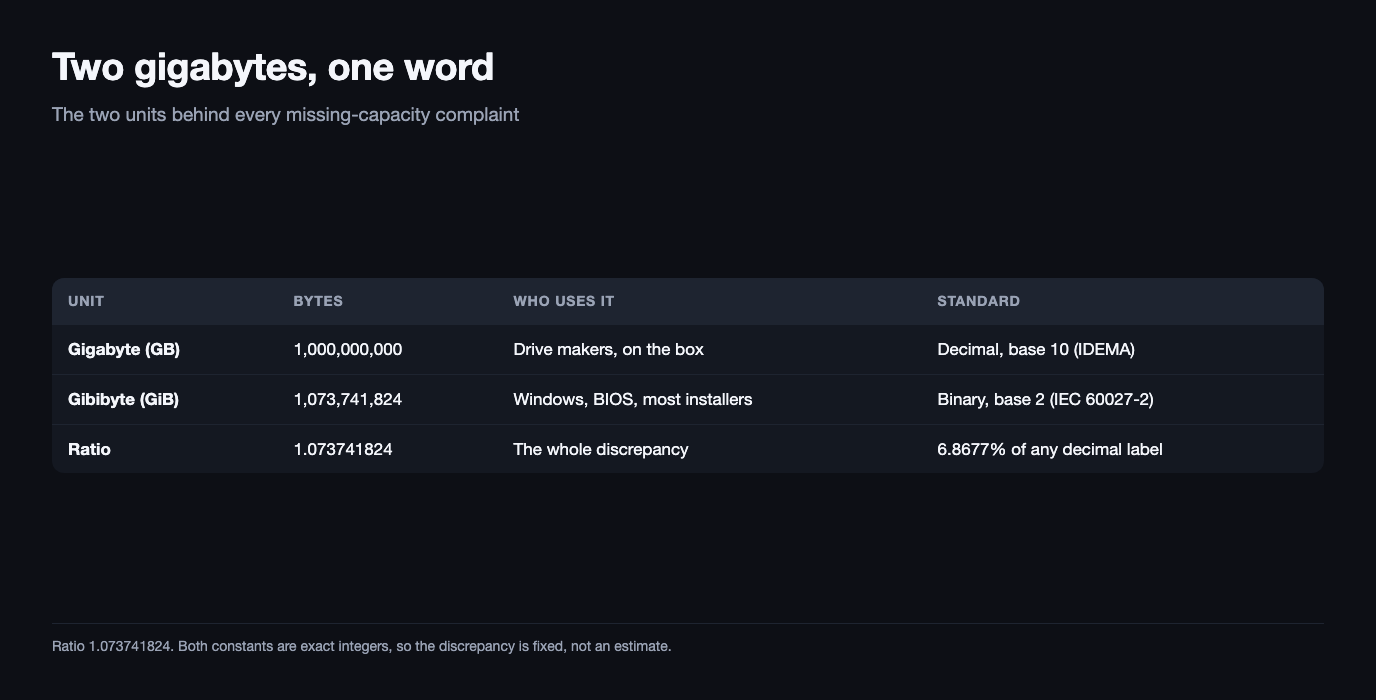
There are two units called the gigabyte and they differ by 7.37%. Storage makers sell in the decimal one: 1,000,000,000 bytes, a round power of ten. Operating systems count in the binary one: 1,073,741,824 bytes, which is 230. The International Electrotechnical Commission named the second unit the gibibyte in December 1998 precisely to end this collision, and NIST’s reference page on the prefixes is blunt about how well that worked: “The confusion is real, as is the potential for incompatibility in standards and in implemented systems.”
Windows never adopted the new name. It divides by 1,024 and prints “GB” anyway, so the number you see is a gibibyte count wearing a gigabyte label. Linux tooling is split, and macOS switched to decimal years ago — which is why the same drive reads 2 TB on a Mac and 1.81 TB on a PC without either being wrong.
| Unit | Bytes | Who uses it | Standard |
|---|---|---|---|
| Gigabyte (GB) | 1,000,000,000 | Drive makers, on the box | Decimal, base 10 (IDEMA) |
| Gibibyte (GiB) | 1,073,741,824 | Windows, BIOS, most installers | Binary, base 2 (IEC 60027-2) |
| Ratio | 1.073741824 | The whole discrepancy | 6.8677% of any decimal label |
Because both constants are exact integers, the ratio terminates at 1.073741824 and the discrepancy is a fixed proportion rather than an estimate. That matters for what comes next: a deduction that is identical on every drive at every capacity is not a loss, it is a unit conversion, and it can be priced exactly.
SSD usable capacity, capacity by capacity
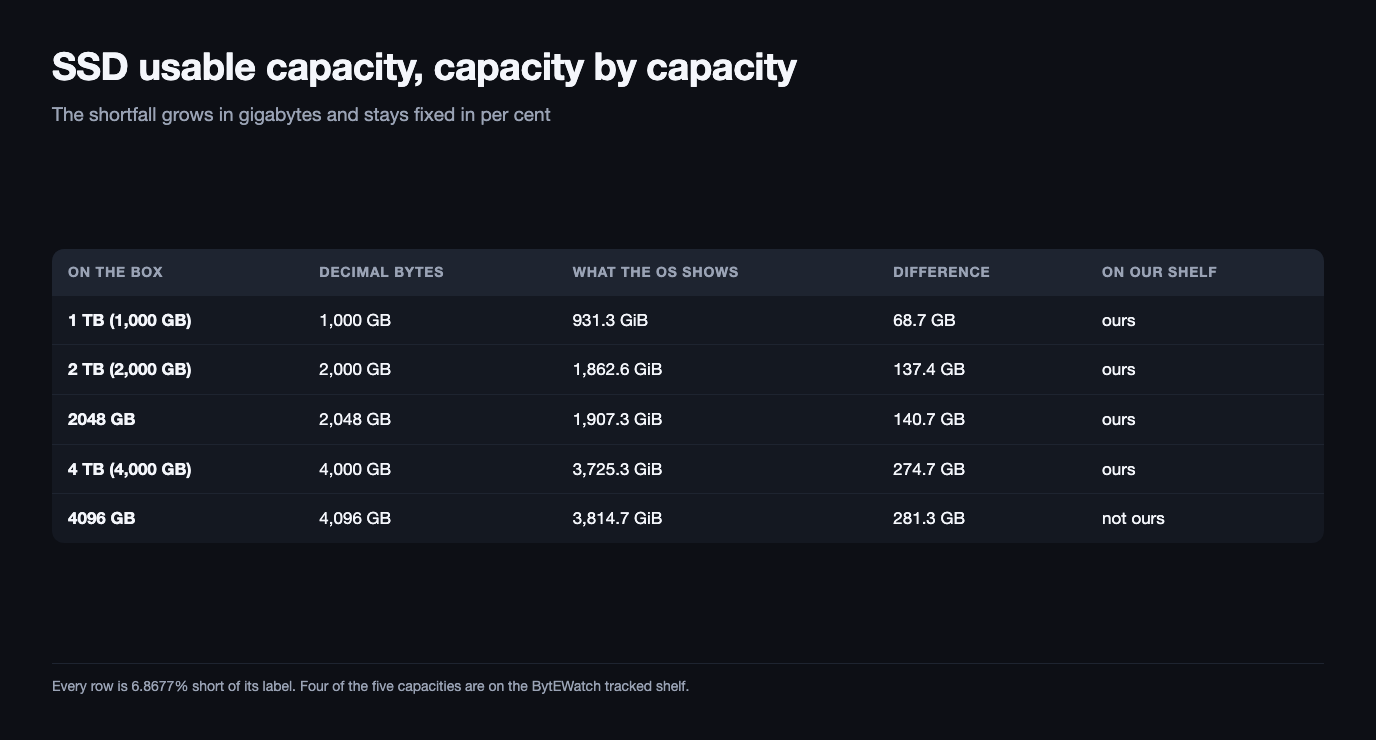
Run the conversion across the capacities that actually ship and the pattern is immediate. The shortfall grows in absolute terms and stays identical in proportional ones.
| On the box | Decimal bytes | What the OS shows | Difference | On our shelf |
|---|---|---|---|---|
| 1 TB (1,000 GB) | 1,000 GB | 931.3 GiB | 68.7 GB | ours |
| 2 TB (2,000 GB) | 2,000 GB | 1,862.6 GiB | 137.4 GB | ours |
| 2048 GB | 2,048 GB | 1,907.3 GiB | 140.7 GB | ours |
| 4 TB (4,000 GB) | 4,000 GB | 3,725.3 GiB | 274.7 GB | ours |
| 4096 GB | 4,096 GB | 3,814.7 GiB | 281.3 GB | — |
Seagate publishes the same conversion as a support table, and it is the cleanest manufacturer confirmation of the arithmetic you will find: a “2 TB (2,000 GB)” drive gives “1.81 TB” of “Windows Output (Binary)”, a 1 TB gives 931 GB, a 4 TB gives 3.63 TB. We recompute each of those rows from the byte constants and they agree with Seagate’s to within its own rounding. Seagate is careful to call its figures “approximate numbers that the drive may report” and careful about the conclusion too: “decimal and binary translates to the same amount of storage capacity”.
What the makers actually print
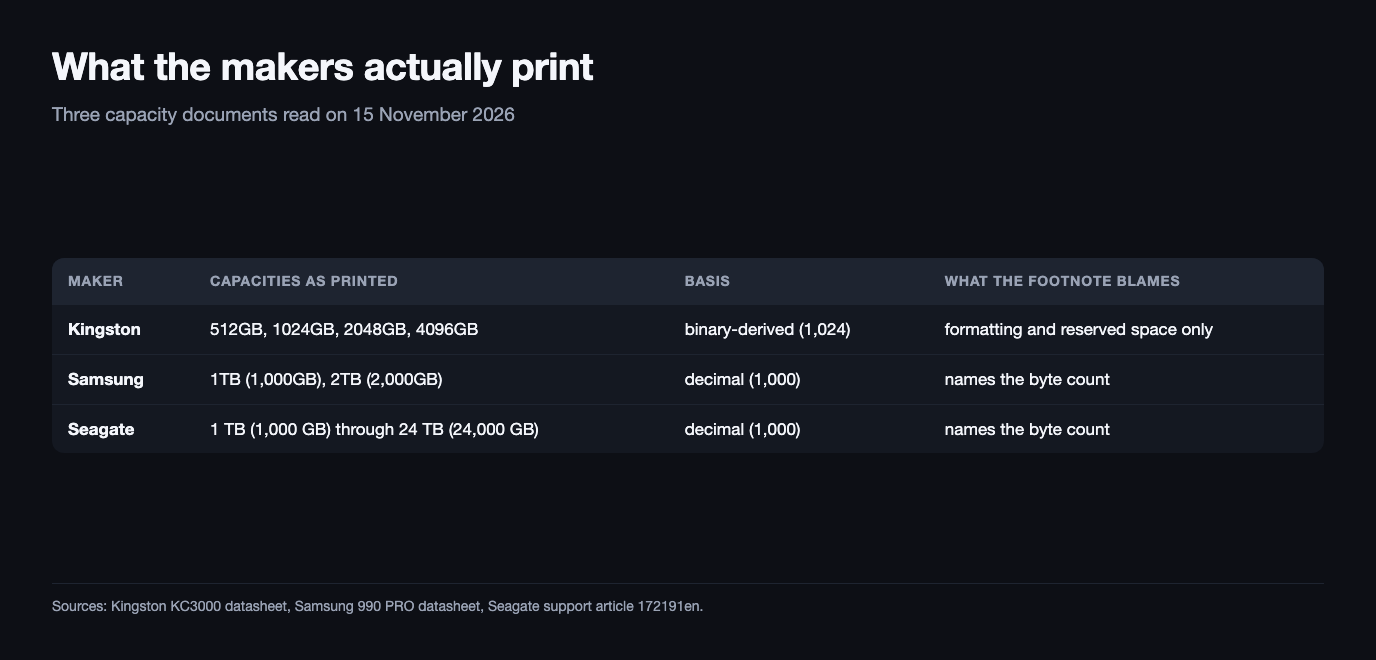
We read three capacity documents on November 15, 2026: Kingston’s KC3000 datasheet, Samsung’s 990 PRO datasheet and Seagate’s support article. Two of the three drives involved are in our own tracked basket. The striking thing is not that they disagree — the arithmetic is identical — but that they describe it in different words, and 1 of 3 never names the unit at all.
| Maker | Capacities as printed | Basis | What the footnote blames |
|---|---|---|---|
| Kingston | 512GB, 1024GB, 2048GB, 4096GB | binary-derived (1,024) | formatting and reserved space only |
| Samsung | 1TB (1,000GB), 2TB (2,000GB) | decimal (1,000) | names the byte count |
| Seagate | 1 TB (1,000 GB) through 24 TB (24,000 GB) | decimal (1,000) | names the byte count |
Samsung is the most precise. Its datasheet prints the capacity as “2TB” and then, in the ordering table, “(2,000GB*)”, with the asterisk resolving to a footnote that names the byte count outright: “1GB = 1,000,000,000 bytes by IDEMA. A certain portion of capacity may be used for system file and maintenance use, thus the actual available capacity may differ from the labeled capacity.” IDEMA is the drive industry’s own trade body, so this is a maker pointing at a standard rather than at your file system.
Kingston is the interesting one, and not because it is being evasive. Its capacities are printed “512GB, 1024GB, 2048GB, 4096GB” — 1,024 and 2,048 and 4,096, binary numbers expressed in decimal gigabytes. A KC3000 sold as 2048GB really does hold 2,048,000,000,000 bytes, which is 1,907.3 GiB. Its footnote, though, attributes the whole shortfall to the drive: “Some of the listed capacity on a Flash storage device is used for formatting and other functions and thus is not available for data storage. As such, the actual available capacity for data storage is less than what is listed on the products.” Formatting and reserved space are real, but they are not what turns 2,048 into 1,907. The unit is, and the footnote does not mention it.
Seagate is the only one of the three that explains the unit to a buyer rather than disclaiming it in small print, which is presumably why its support article outranks every drive maker’s product page for this question.
Three deductions, and only one is a unit
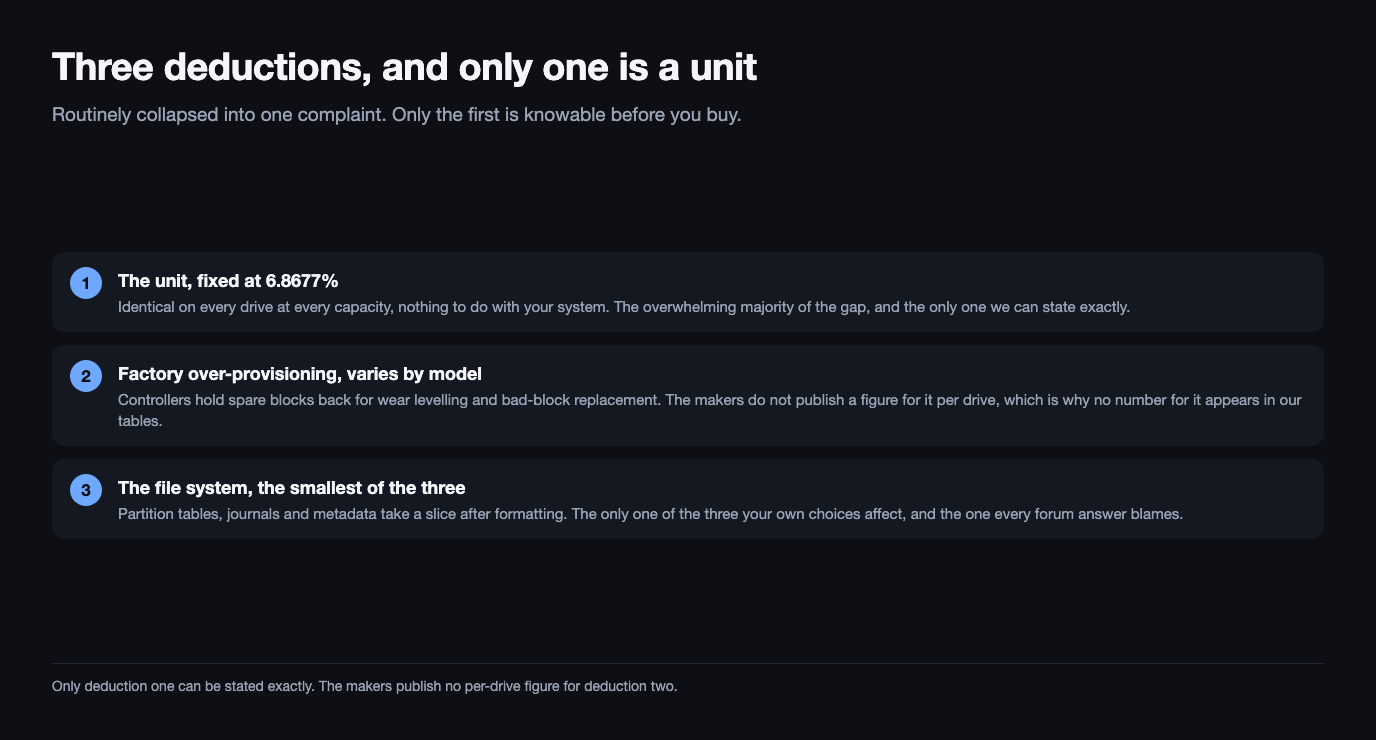
Three different things stand between the number on the box and the free space in your file manager, and they are routinely collapsed into one. Separating them is the difference between understanding your drive and believing you were cheated.
One, the unit. Fixed at 6.8677%, identical on every drive, nothing to do with your system. This is the overwhelming majority of the gap and the only one we can state exactly.
Two, factory over-provisioning. Controllers hold spare blocks back for wear levelling and bad-block replacement. This one genuinely varies by model and the makers do not publish a figure for it per drive, which is why no number for it appears in our tables. Where a drive is sold as 2048GB rather than 2,000GB, you are usually looking at a maker that chose to expose the binary capacity and provision its spare area separately — the same reason endurance ratings differ between drives of nominally equal size.
Three, the file system. Partition tables, journals and metadata take a slice after formatting, and this is the only one of the three that your choices affect. It is also the smallest, and it is the one every forum answer blames.
Pricing SSD usable capacity on our own shelf
Here is the part no one else does: what the unit costs, on drives whose prices we observe and date. Every figure below renders from our database at the moment you load this page.
| Drive | Observed | Per label GB | Per usable GiB | Invisible slice |
|---|---|---|---|---|
| Crucial T500 2TB NVMe Gen4 SSD | $349.00 Newegg, November 19, 2026 | $0.1745 | $0.1874 | $23.97 |
| Crucial P3 Plus 1TB NVMe Gen4 SSD | $182.89 Newegg, November 19, 2026 | $0.1829 | $0.1964 | $12.56 |
| Kingston KC3000 2048GB NVMe Gen4 SSD | $379.55 Newegg, November 16, 2026 | $0.1853 | $0.1990 | $26.07 |
| WD Black SN850X 2TB NVMe Gen4 SSD | $381.02 Newegg, November 19, 2026 | $0.1905 | $0.2046 | $26.17 |
| Samsung 990 Pro 4TB NVMe Gen4 SSD | $764.99 Newegg, November 16, 2026 | $0.1912 | $0.2054 | $52.54 |
| Samsung 990 Pro 2TB NVMe Gen4 SSD | $387.95 Newegg, November 22, 2026 | $0.1940 | $0.2083 | $26.64 |
| SK hynix Platinum P41 2TB NVMe Gen4 SSD | $466.82 Newegg, November 19, 2026 | $0.2334 | $0.2506 | $32.06 |
The ranking does not move. Crucial T500 2TB NVMe Gen4 SSD is the cheapest gigabyte on both bases and SK hynix Platinum P41 2TB NVMe Gen4 SSD the dearest on both, because every row shifts by the identical 7.37%. That is the reassuring half of this article: if you are comparing one SSD against another SSD, the unit cancels and our per-gigabyte-by-capacity work stands exactly as published.
The money is not nothing, though. Across the 7 priced drives in this table, the slice of the purchase price that buys capacity your operating system will never display comes to $200.00. You are not being short-changed — the bytes are all there, all 15,048,000,000,000 of them — but if you budgeted for the number on the box you budgeted for 6.87% more usable space than you are going to see.
| Kit | Observed | Per label "GB" | Per decimal GB | Real bytes |
|---|---|---|---|---|
| G.Skill Ripjaws V DDR4-3600 CL18 32GB (2x16GB) | $249.99 Newegg, November 19, 2026 | $7.8122 | $7.2757 | 34.36 GB |
| Corsair Vengeance LPX DDR4-3200 CL16 32GB (2x16GB) | $269.99 Newegg, November 13, 2026 | $8.4372 | $7.8577 | 34.36 GB |
| Crucial Pro DDR4-3200 64GB (2x32GB) | $583.75 Newegg, November 19, 2026 | $9.1211 | $8.4947 | 68.72 GB |
| Kingston Fury Beast DDR4-3200 32GB (2x16GB) | $319.99 Newegg, November 16, 2026 | $9.9997 | $9.3129 | 34.36 GB |
| G.Skill Flare X5 DDR5-6000 CL36 32GB (2x16GB) | $528.97 Newegg, November 19, 2026 | $16.5303 | $15.3951 | 34.36 GB |
| Corsair Vengeance DDR5-6000 CL30 32GB (2x16GB) | $539.99 Newegg, November 21, 2026 | $16.8747 | $15.7158 | 34.36 GB |
| Kingston Fury Beast DDR5-6000 32GB (2x16GB) | $559.00 Newegg, October 30, 2026 | $17.4688 | $16.2690 | 34.36 GB |
| Crucial Pro DDR5-5600 64GB (2x32GB) | $1299.77 Newegg, November 19, 2026 | $20.3089 | $18.9141 | 68.72 GB |
| G.Skill Trident Z5 RGB DDR5-6400 CL32 32GB (2x16GB) | $679.99 Newegg, November 16, 2026 | $21.2497 | $19.7903 | 34.36 GB |
| G.Skill Trident Z5 Neo DDR5-6000 CL30 32GB (2x16GB) | $709.99 Newegg, November 16, 2026 | $22.1872 | $20.6634 | 34.36 GB |
| Kingston Fury Beast DDR5-5200 32GB (2x16GB) | $804.94 Newegg, November 16, 2026 | $25.1544 | $23.4268 | 34.36 GB |
Memory is the mirror image and almost nobody mentions it. A DIMM is manufactured in powers of two because the address lines require it, so a 32GB module is genuinely 32 GiB — 34,359,738,368 bytes, or 34.36 decimal GB. Nothing is missing from a memory kit. When Windows reports 32GB of RAM and 1,862GB of a 2TB SSD, both readings are binary; only one of the two labels was.
The one figure on this site that mixes the two
Working through the above, we found the problem in our own data rather than anyone else’s, so it belongs in the article. Our capacity column stores a plain number per product and our per-gigabyte column divides a price by it. For an SSD that number is a decimal GB label. For a memory kit it is a GiB count. Any comparison that stays inside one category is therefore exact, and any comparison that crosses between them is off by the ratio.
| Figure | As published | Per byte | Why it moves |
|---|---|---|---|
| DDR5 median | $20.3089/GB | $18.9141/GB | label is GiB, so per decimal GB it is cheaper |
| NVMe Gen4 median | $0.1905/GB | $0.1905/GB | already decimal — unchanged |
| Memory ÷ flash | 106.6x | 99.3x | overstated by 6.87% |
That top-line multiple is ours, it renders live on why RAM prices are so high, and on the arithmetic here it is 6.87% too large — 106.6x where the per-byte figure is 99.3x. The cause is not a bad query. It is that price_per_gb_cents divides a price by whatever is in the capacity column, and that column holds GiB for a DIMM and decimal GB for a drive. Within a category the unit cancels and the figure is exact. Across the two, it quietly compares 1,073,741,824 bytes against 1,000,000,000.
We would rather publish the correction than quietly restate the number, and the reason is the same reason this article exists: a figure is only as good as the unit under it. Nothing else changes. Which upgrade to buy first turns on what a machine is short of, not on a per-byte ratio, and the answer there is unaffected.
What to do when you buy
Four habits, and the first one does most of the work.
Convert before you compare a requirement. Decide what you need in GiB, because that is the unit your operating system, your game launcher and your backup tool will all report. Then multiply by 1.073742 to get the label capacity to shop for. Two terabytes of real working space needs a drive labelled bigger than 2TB.
Read a “2048GB” label as a feature, not a typo. It is 2.4% more bytes than a 2,000GB drive at the same nominal size. Whether it is better value depends on the price, which is what our live SSD chart is for.
Compare per gigabyte within a class, never across one. SSD against SSD and kit against kit are sound. Memory against storage needs the conversion above, as our own figure demonstrates.
Do not pay for a “fix”. No tool recovers the unit difference, because there is nothing to recover: the bytes are present and accounted for. Software promising to reclaim the missing space on a new drive is selling you a unit conversion.
Related reading
FAQ
Why does my 2TB SSD only show 1.81TB?
Because the box counts gigabytes as 1,000,000,000 bytes and Windows counts them as 1,073,741,824. A 2TB drive holds 2,000,000,000,000 bytes, which is 1,862.6 GiB, and Windows prints that as 1.81 TB while still writing "TB". Seagate publishes the same conversion in its own support table. No space is missing and no tool can recover it, because there is nothing to recover.
Is the missing capacity just formatting?
No, and this is the common mistake. Formatting is a real but small deduction that varies with your file system. The unit conversion is 6.87% of the label, identical on every drive at every capacity before a file system exists, and it accounts for almost the whole gap. Kingston's own capacity footnote blames only formatting and reserved space without naming the unit, which is part of why the misunderstanding persists.
What is the real usable capacity of a 1TB, 2TB and 4TB SSD?
931.3 GiB, 1,862.6 GiB and 3,725.3 GiB respectively, before formatting — the figures your operating system will display as roughly 931 GB, 1.81 TB and 3.63 TB. Each is 6.87% below its label, because the proportion is fixed by the two definitions and does not change with capacity.
Why is one SSD sold as 2048GB and another as 2TB?
Because the makers chose different conventions and both are honest. Kingston prints 512GB, 1024GB, 2048GB, 4096GB, which are binary numbers expressed in decimal gigabytes, so a 2048GB drive holds 2,048,000,000,000 bytes. Samsung prints 2TB and, in its ordering table, "(2,000GB*)". The 2048GB drive really does hold 48 GB more than the 2TB one — 2.4% more bytes at the same nominal size.
Does this affect price-per-gigabyte comparisons?
Only across product classes. Comparing one SSD with another is exact, because both sides are divided by decimal labels and the unit cancels — the ranking on our shelf is identical on either basis. Comparing memory with storage is not, because memory labels are GiB counts: such a multiple is overstated by 6.87%, which on our own current figure means 106.6x should read 99.3x.
Does RAM lose capacity the same way?
No — it runs the other way. DIMMs are built in powers of two, so a 32GB kit is genuinely 32 GiB, or 34.36 GB in the decimal unit storage uses. Nothing is missing from a memory kit, and Windows reporting "32GB" is correct in binary. Only the storage label was decimal to begin with.
Should I buy a bigger drive to get the capacity I need?
If your requirement is in the unit your OS reports, yes. Multiply the GiB you need by 1.073742 to get the label capacity to shop for: 2 TiB of real working space needs a drive labelled above 2TB. Decide the requirement first, then compare prices per gigabyte within the storage class, where the unit cancels.
Which operating systems report capacity in decimal?
macOS has used decimal for years, which is why the same drive reads 2 TB there and 1.81 TB on Windows without either being faulty. Windows, the BIOS and most installers divide by 1,024 and still print "GB". Linux tooling is split: some utilities print GiB correctly labelled, others follow the Windows habit. Check which unit a figure is in before trusting a comparison between two machines.
Price the gigabyte you actually get
We track DDR5, DDR4 and NVMe listings at US retailers and tell you when one of yours moves. New retail stock only, no deal scores, no affiliate links — observed prices, dated, with the sample size next to them, and each drive divided by its own real capacity rather than the number on the box.